
Keyboard Layouts: Examples
Various examples of keyboard layouts.
Layouts folded
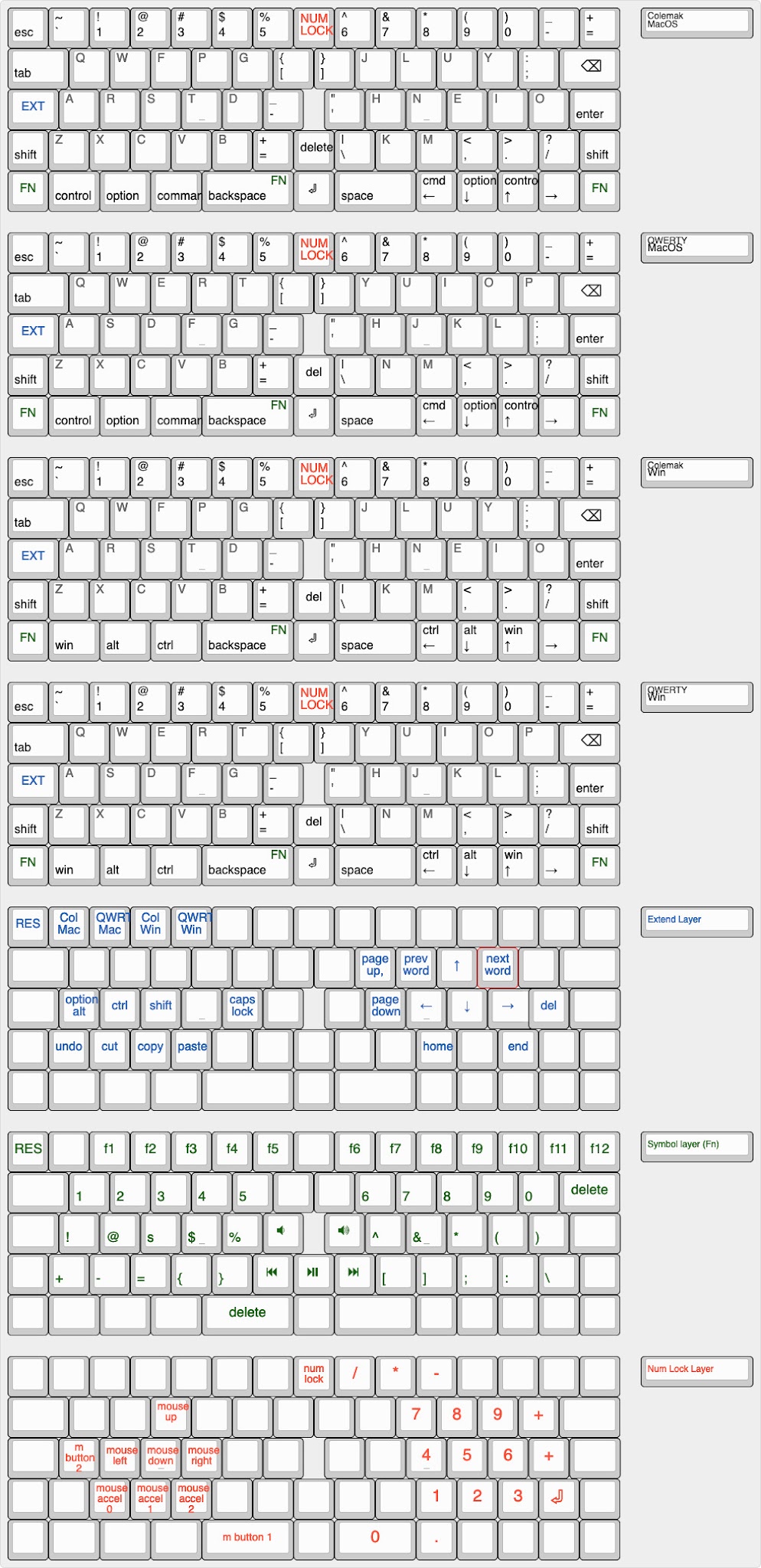
Colemak-DH Seniply
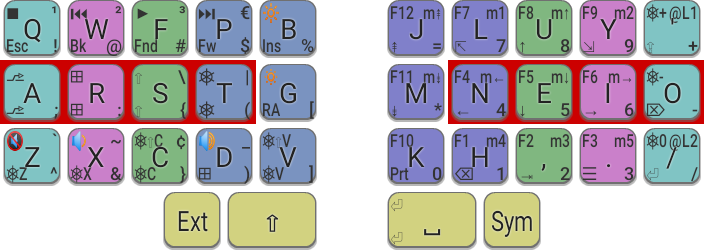

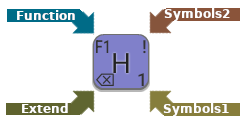
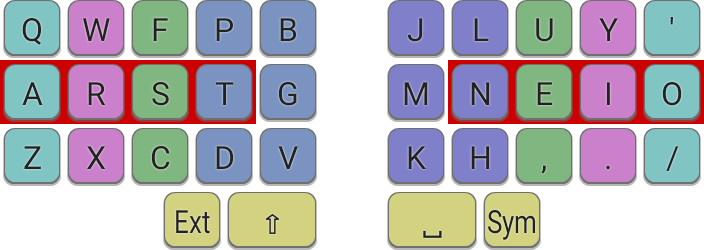
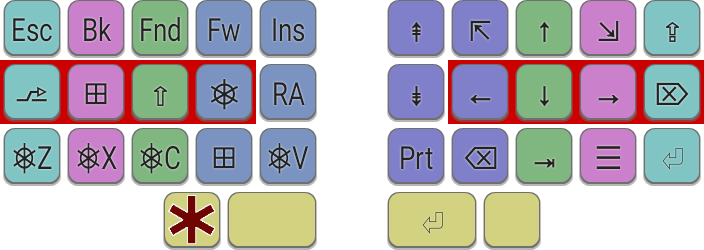
Navigation and other non-printable functions are provided by the Extend layer, which is heavily based on DreymaR's original.
The Extend layer is selected via the left-most thumb key. This layer provides navigation, page up/down, home/end on the right-hand side. Backspace ⌫ is assigned to a comfortable spot on a strong index finger (Ext-H), with Delete ⌦ also well positioned on the home-row (Ext-O).
On the left-hand side are home-row modifiers for Alt, Super, Shift, Control and AltGr on A,R,S,T,G respectively. As with DreymaR's Extend, these modifiers can be held down and combined with other Extend functions such as arrows etc, to comfortably produce combinations like Ctrl ⌫, Alt ←. Importantly though, these home-row modifiers are also implemented as one-shot (sticky) keys, which makes it easy to do Control and Alt shortcuts without needing dedicated modifier keys. An additional non-sticky Super key is provided on Ext-D as some desktop environments require this key to be tapped on its own. Commonly used operations like Cut, Copy, Paste and Undo have dedicated shortcuts in this layer too.
Examples:
(i) Output Ctrl-A using Ext-t a
(ii) Output Ctrl-W using Ext-t w
(iii) Output Alt-Tab using Ext-a-,
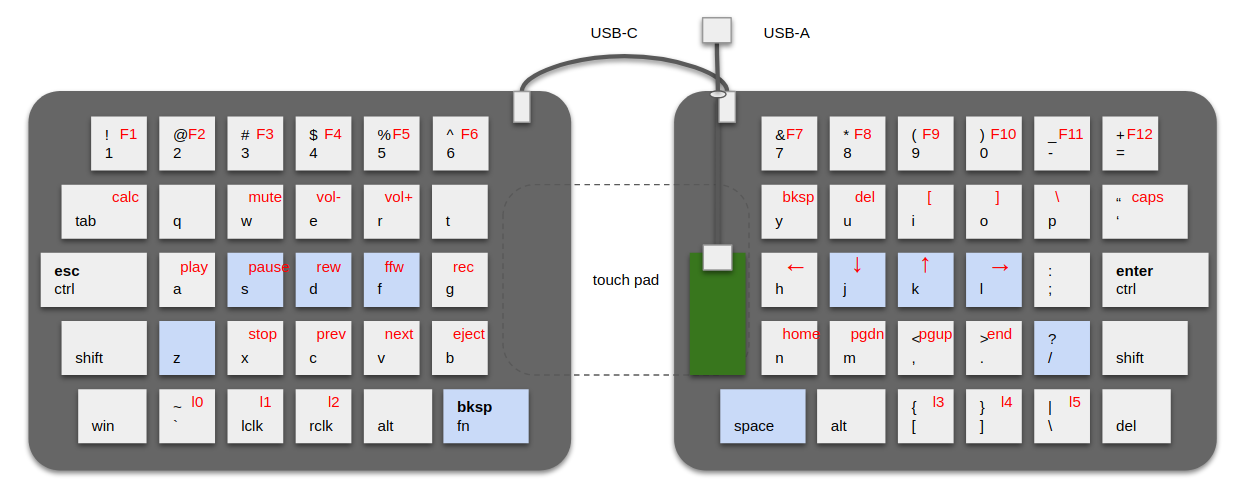
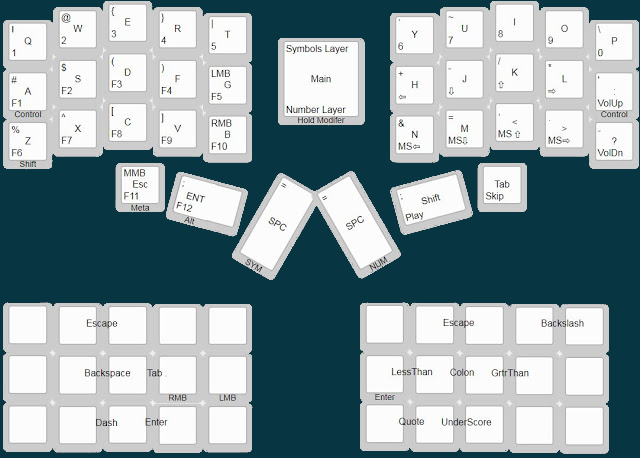
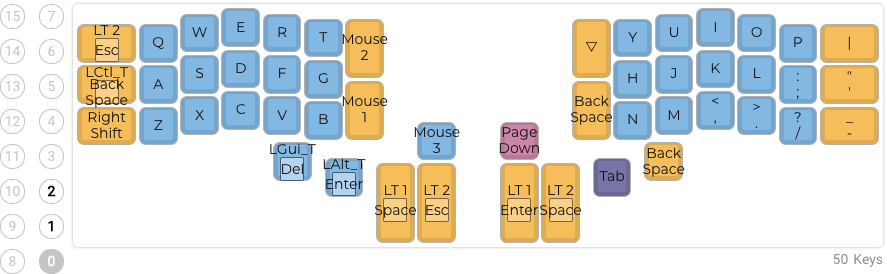
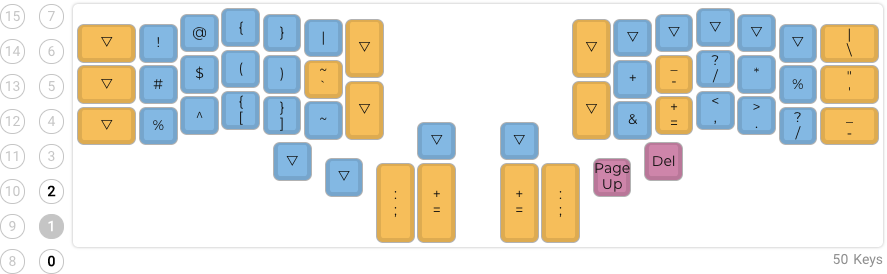
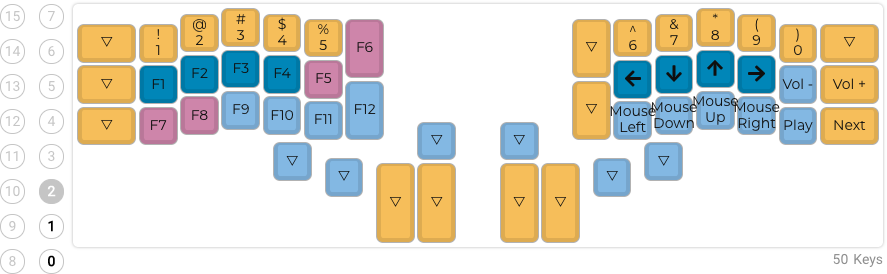
Xah Gergo Layout
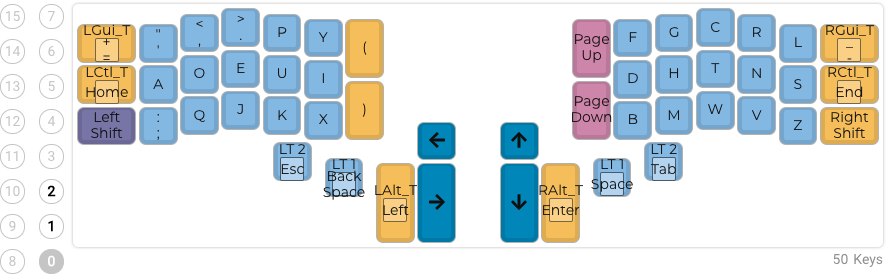
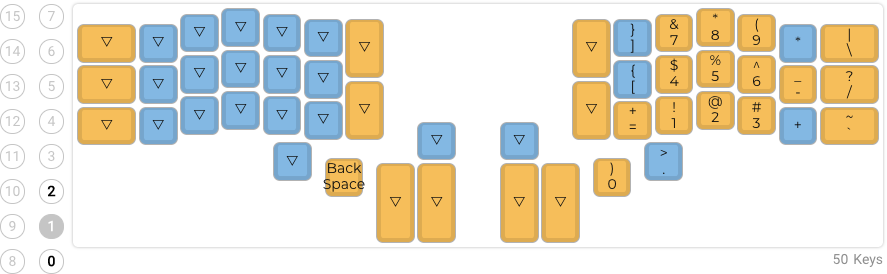
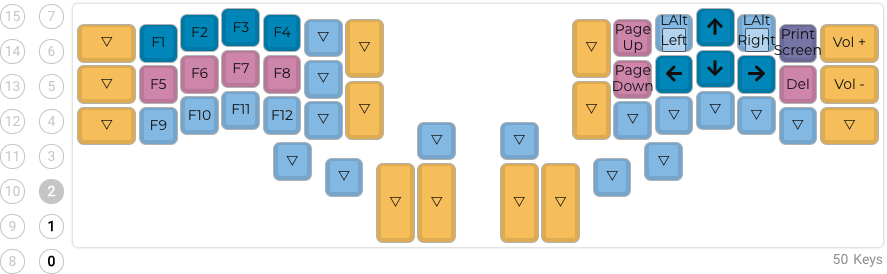
Atreus Keyboard
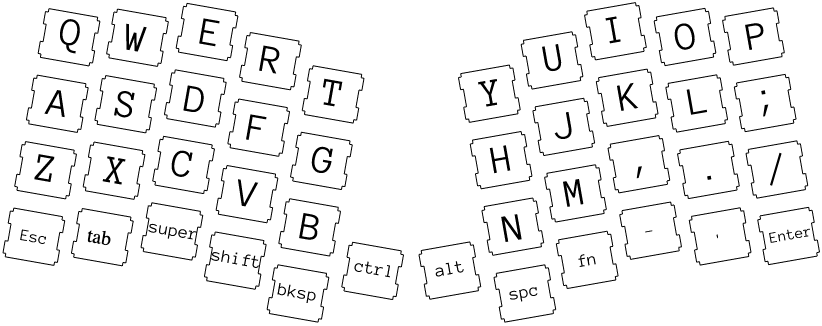
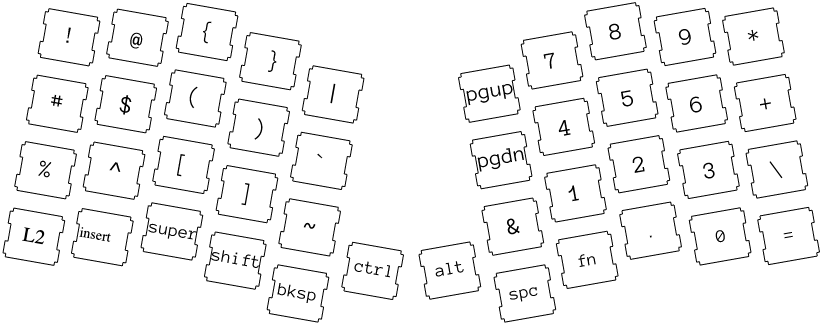
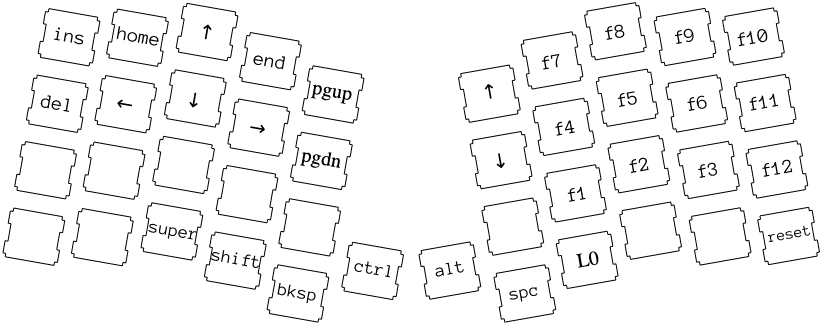
Mitosis
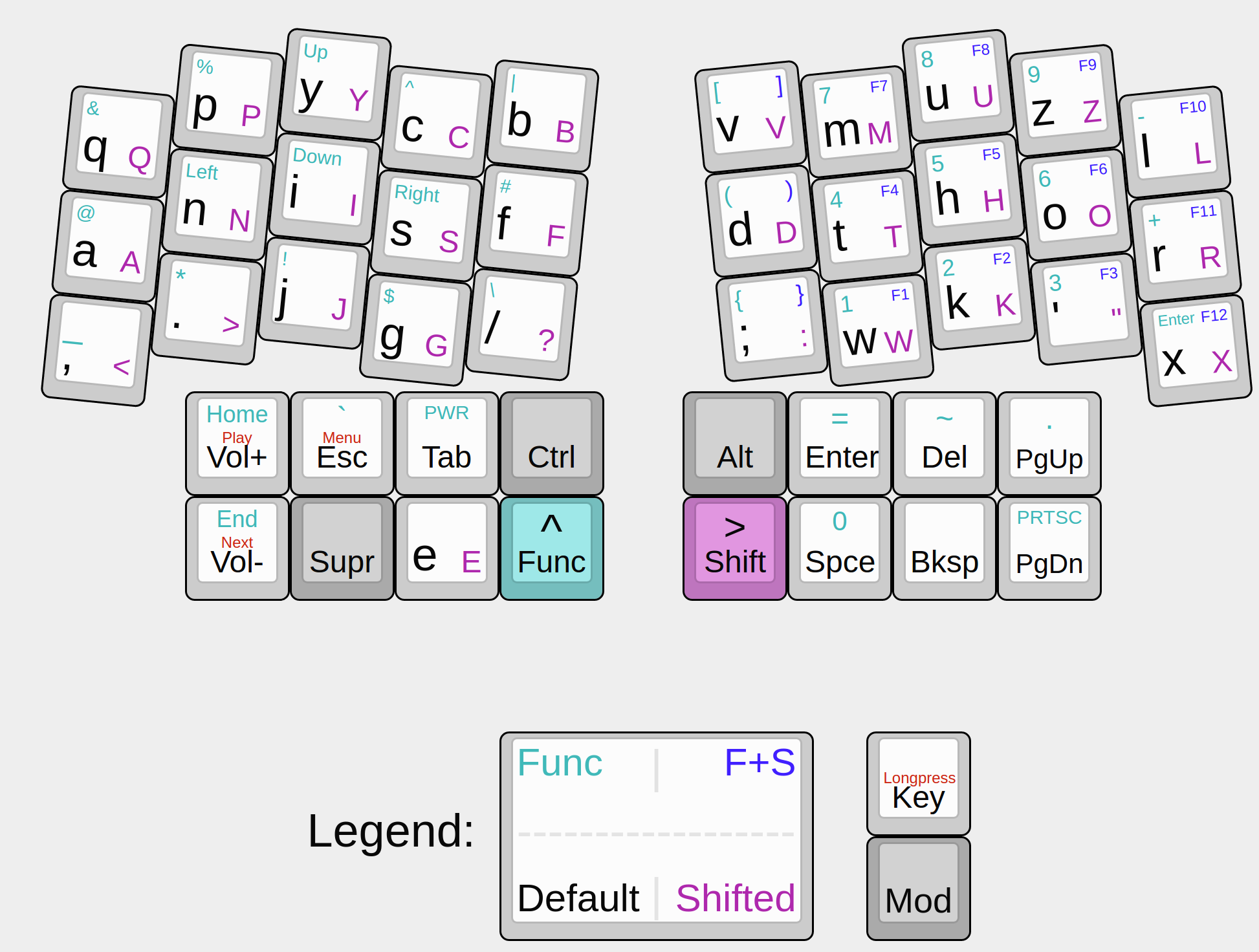
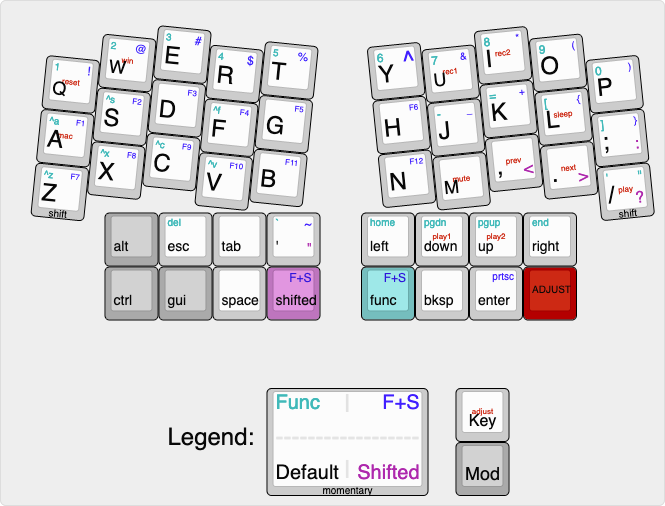
Mitosis qwerty
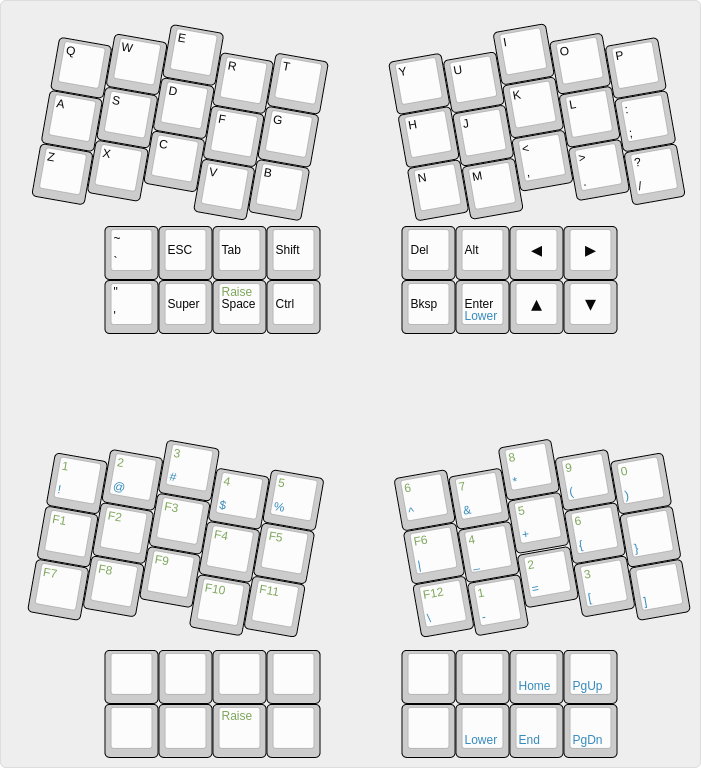
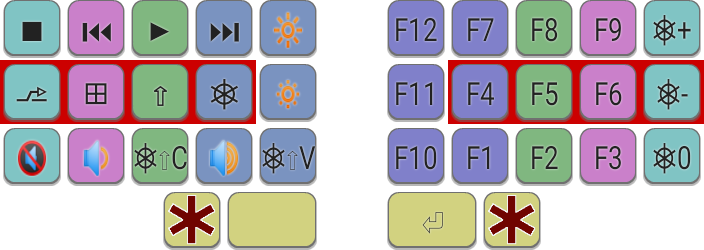
Check out my new small keyboard and read all about my layers (details in comments) : MechanicalKeyboards
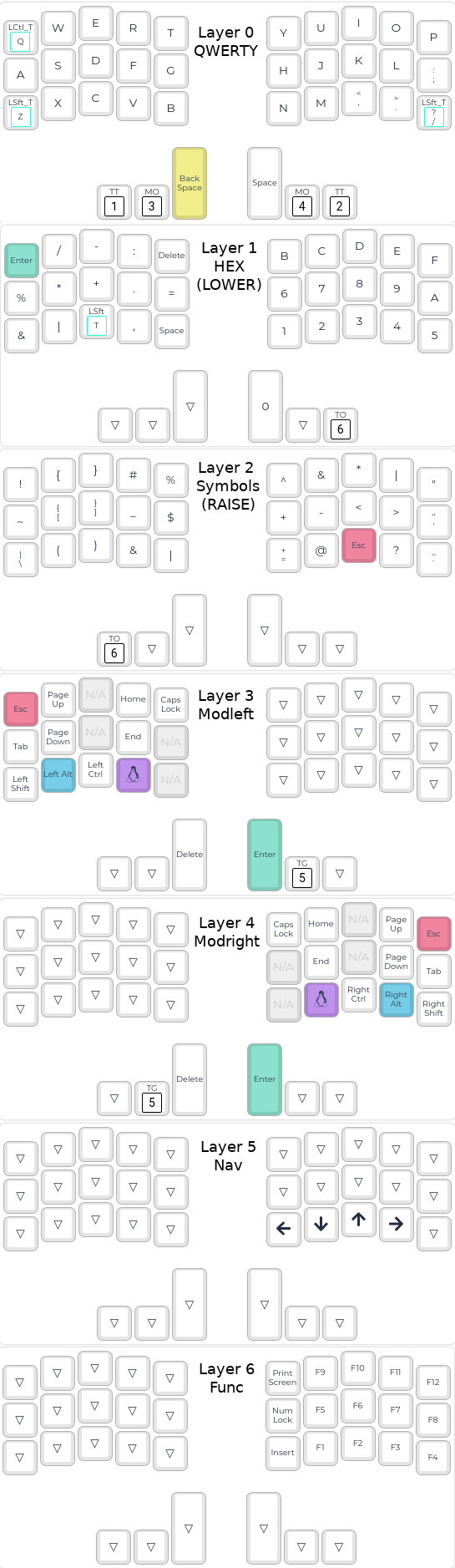
QWERTY layer
Not much to see here, pretty essential default layer provides a standard QWERTY; layout, however if the 'z' or '/' key is held it acts as a shift, likewise the 'q' key acts like control when held; having these basic modifiers easily accessible is entirely essential. Backspace and space are available on the innermost thumb cluster keys on the left and right, respectively. The outermost thumb cluster keys give access to the hex and symbols layers (left and right, respectively), while the middle thumb cluster keys access the left and right modifier layers. The left and right thumb buttons become delete and enter whenever the modifiers layer is active. The QWERTY layer is indicated by a blue underglow.
Hex layer (lower)
The hex layer is accessed by the left thumb holding or double-tapping the "Lower" key. The hex layer glows pink.
A numpad layer is fairly common on the layouts I've seen and used, but I cannot recall seeing a hexpad layer anywhere. Since I actually do find myself typing hex fairly often it seemed reasonable to forgo a traditional numpad. Instead I used the fifteen keys on the right hand to provide the numbers 1-F with 0 on the thumbcluster. I type numbers in a variety of contexts and they each use distinct punctuation to separate the digits. For instance, typing a datetime requires up to 4 symbols (e.g. 2020-08-16T06:03:56.69420) while typing any maths requires having operators close at hand. To address this I used the left hand for a variety of symbols which find regular use alongside numbers. For convenience I provided delete, space, and enter as well. While on the hex layer pressing the "Raise" key will change layers to the function layer.
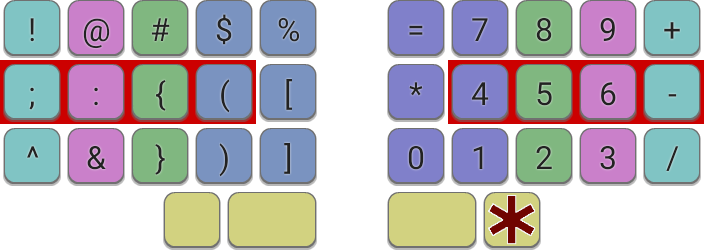
Symbols layer (raise)
Access the symbols layer by holding or double-tapping the "Raise" key. Symbols are active when the board glows cyan.
The symbols layer gives access to all the symbols, importantly I wanted to have underscore and all the brackets really prominently on the hand opposite the "Raise" key. Pressing the "Lower" key while on the symbol layer also makes the function layer active. This symmetric arrangement permits the function layer to be accessed by touching the raise and lower keys simultaneously.
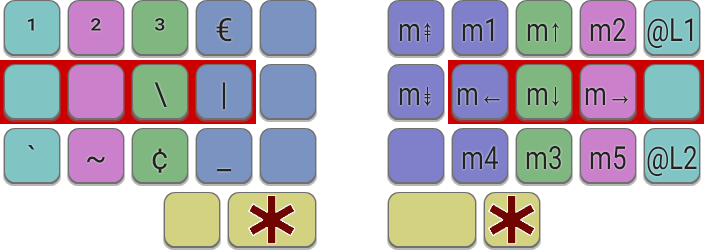
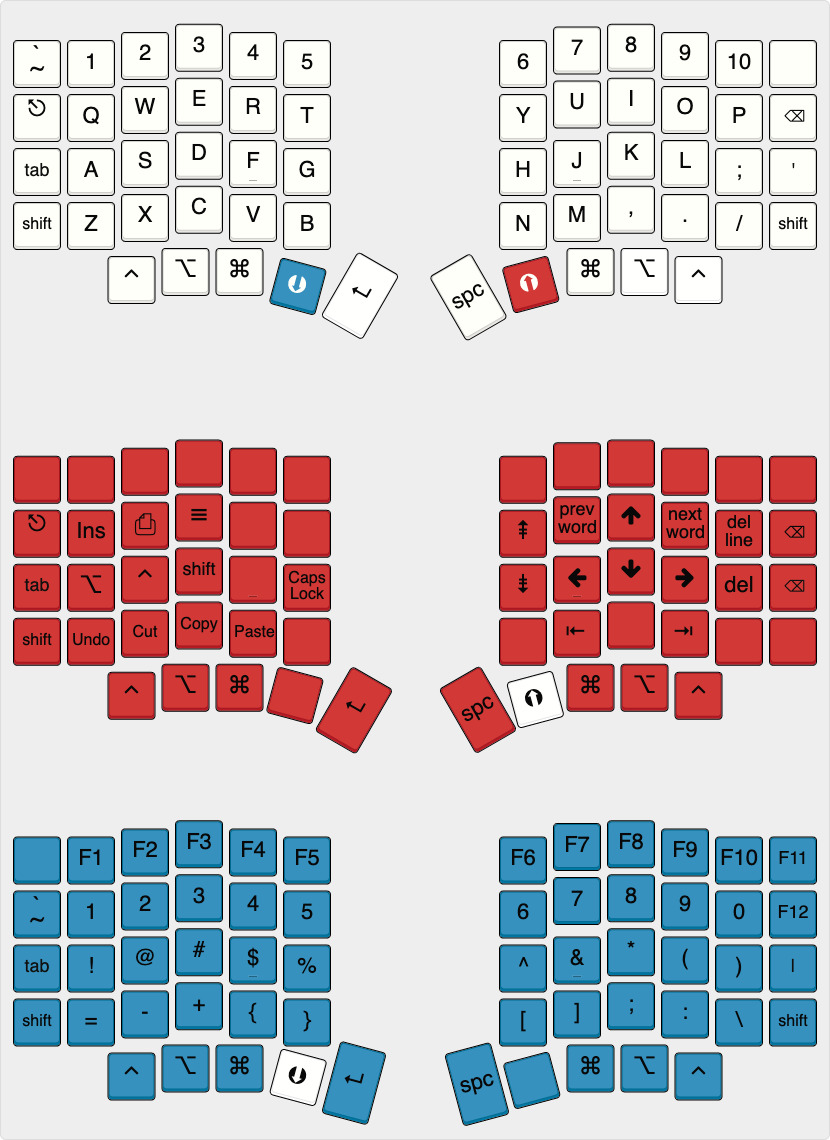
modifiers layer (left and right)
Using a text editor essentially requires having ready access to all modifier keys in conjunction with any normal key, so a layer which features a modifier key covering any normal key presents a problem. My solution to this is to provide two separate modifier layers which each only consume one hand of the split layout, the other hand is completely transparent to allow access to whichever key from any of the QWERTY, hex, or symbols layer might be needed.
The left modifier layer is accessed by holding the "Mod" under your left thumb and will be signified with a red glow under your left hand (and right with right).
The placement of the modifiers is mirror imaged on either side. Caps lock is accessible on both sides, which when active one LED on each side will glow white.
navigation layer
The navigation layer places arrow keys on the left side of the board. Find it by tapping both of the "Mod" keys, and recognize it by the three top LEDs of the right half glowing green.
function layer
The function layer provides access to the F-keys, print screen, num lock, and insert. It underglows white and can be accessed by hitting both the "Raise" and "Lower" keys.
The (infinite) quest for the perfect keyboard and layout
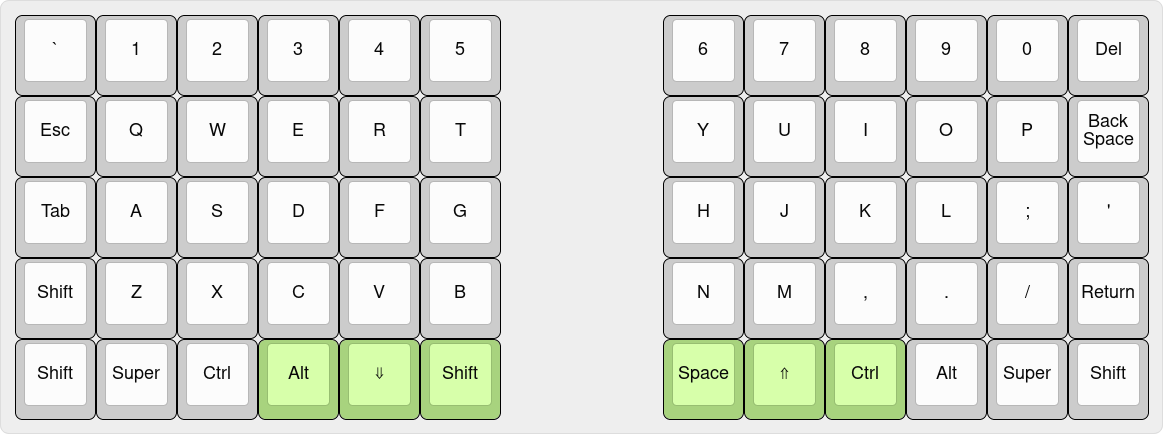
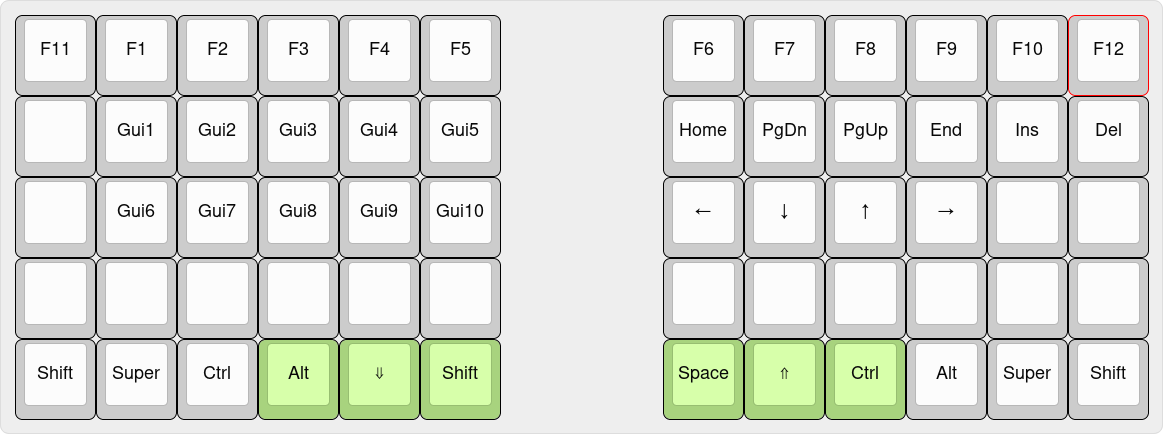
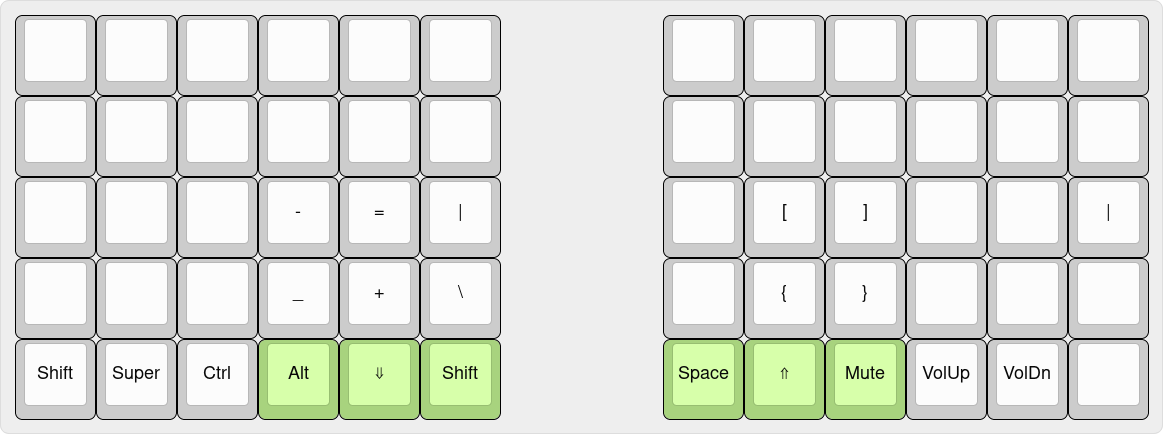
The Planck - Key Theory
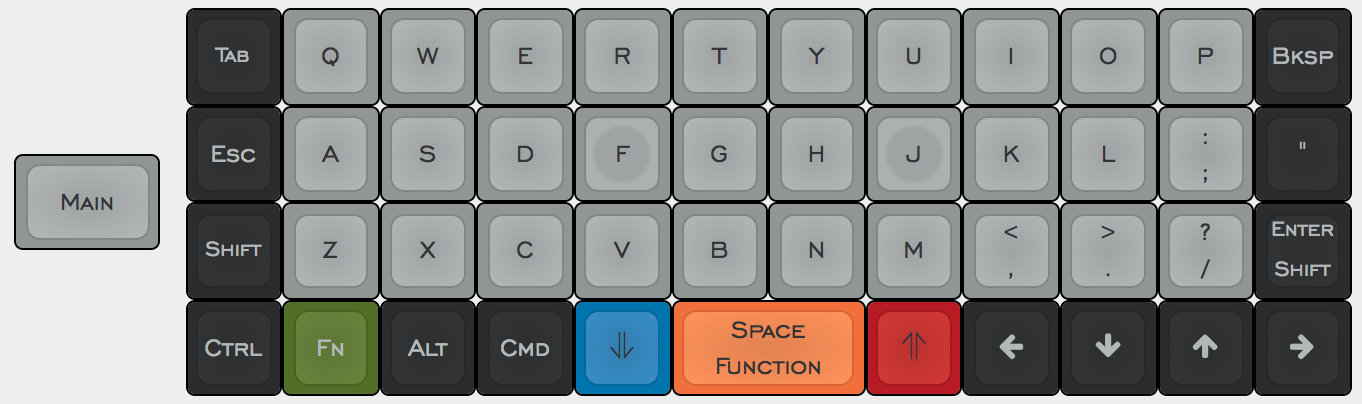
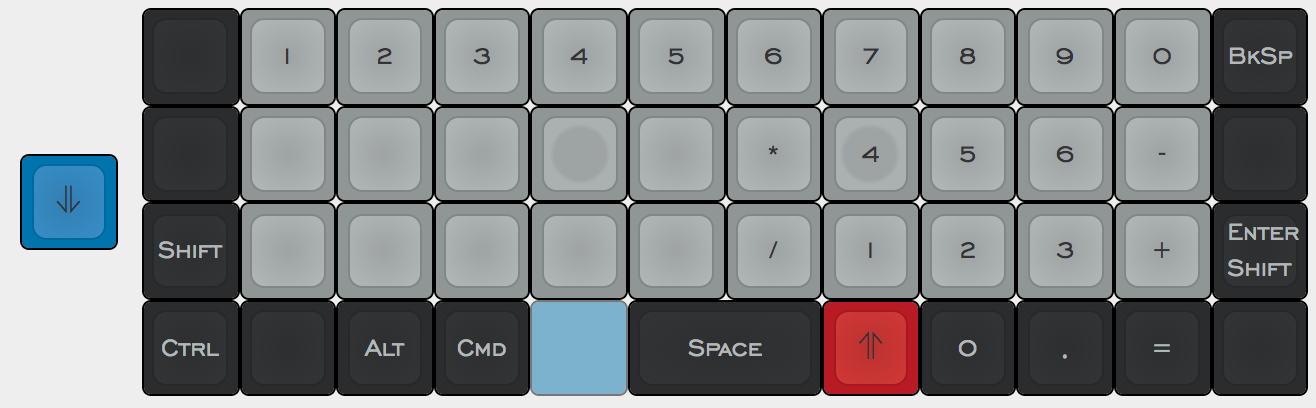
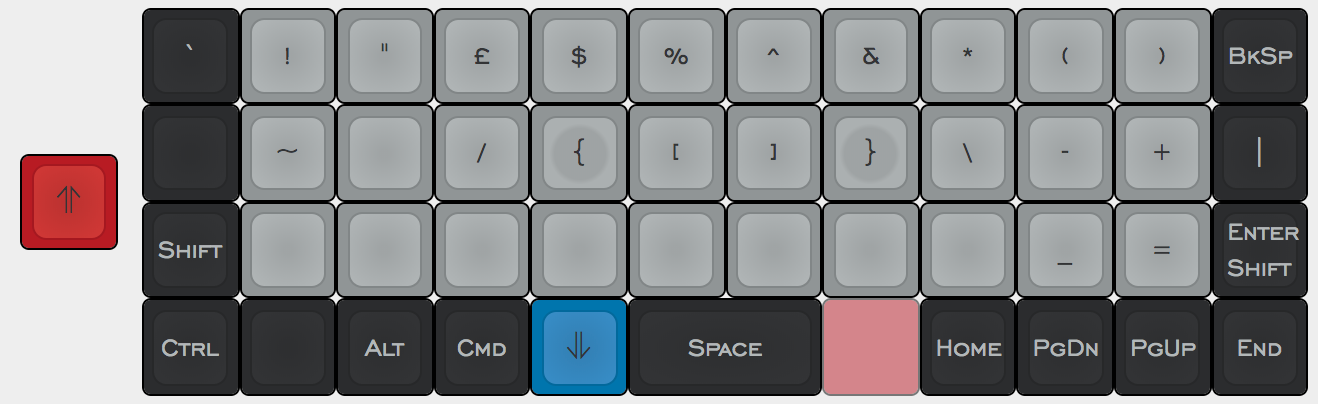
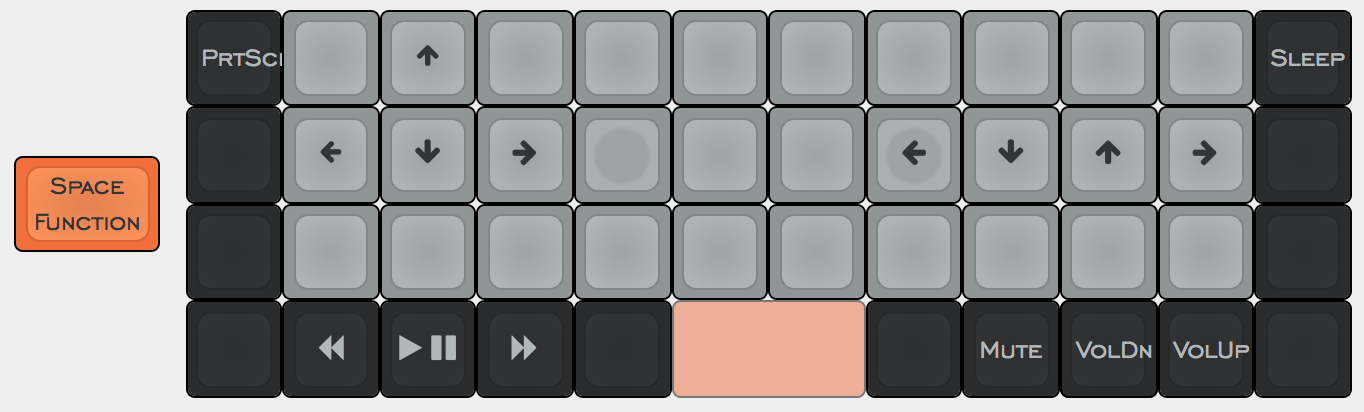
The art of making 40% layouts
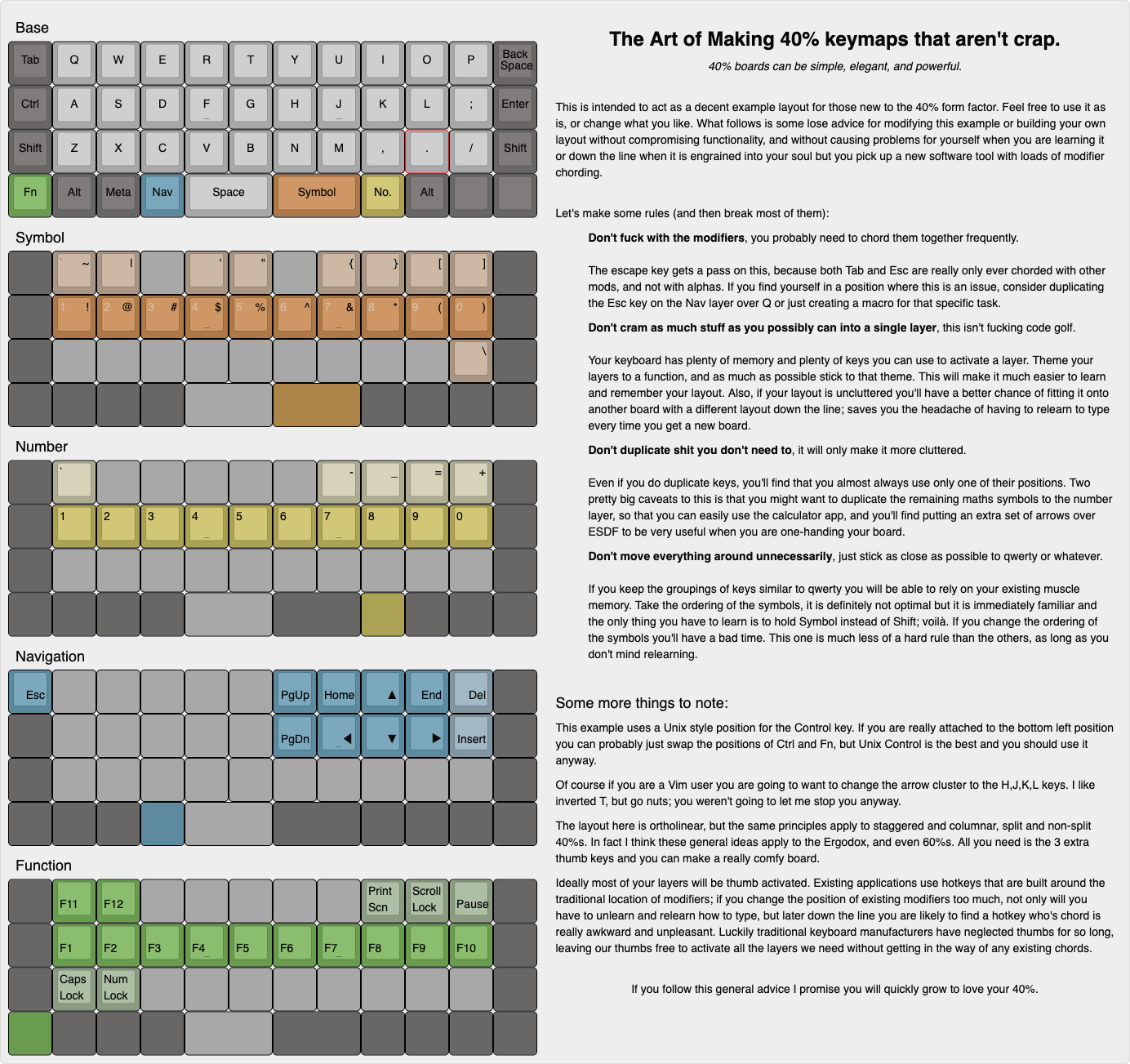
Customizing a Keyboard Layout
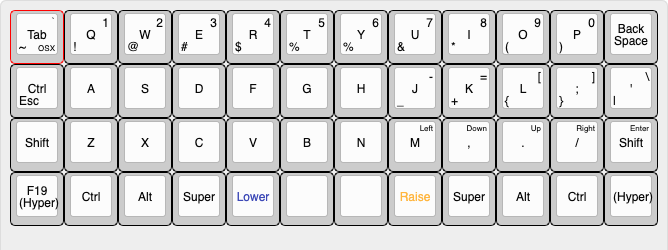
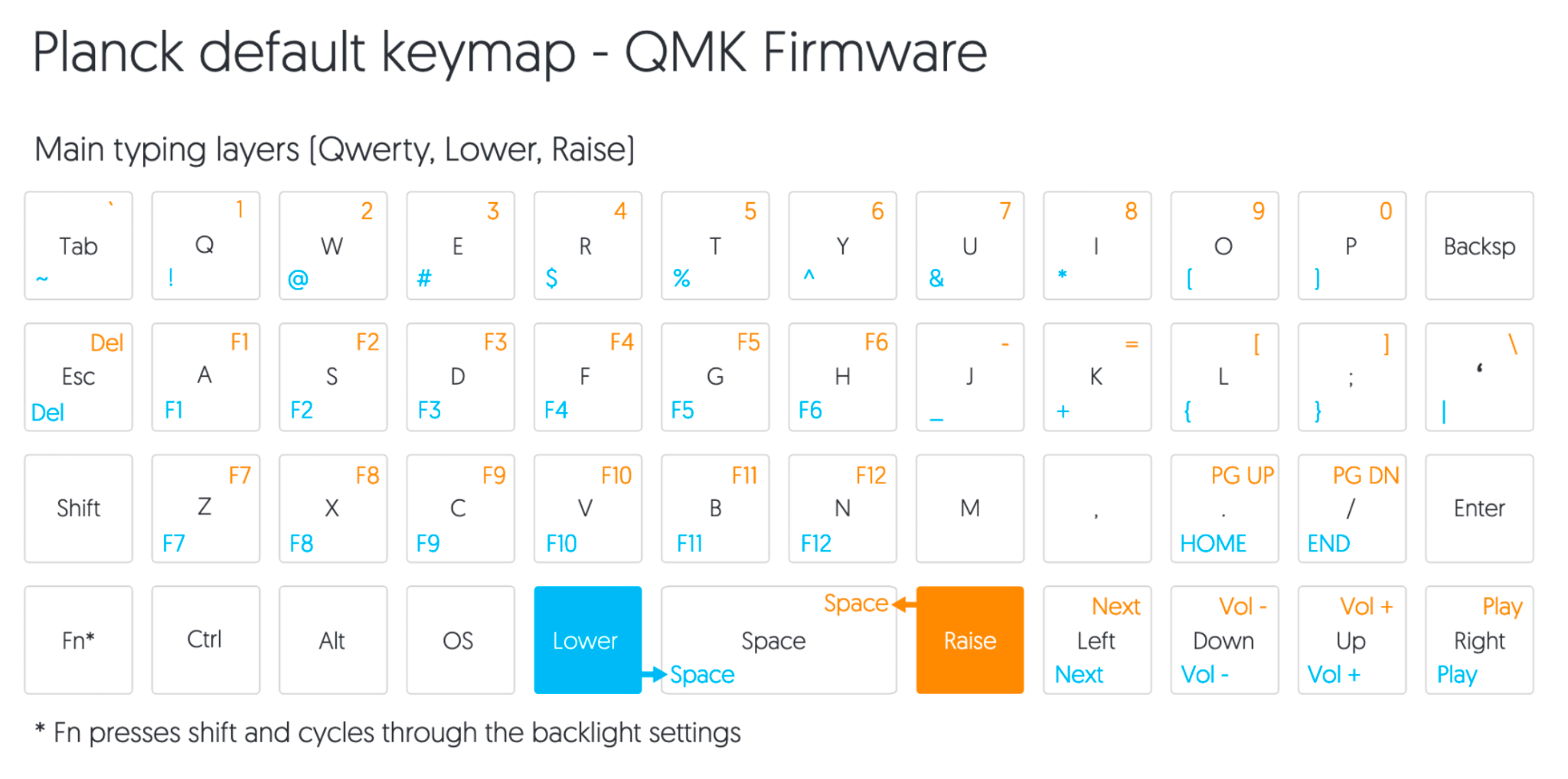
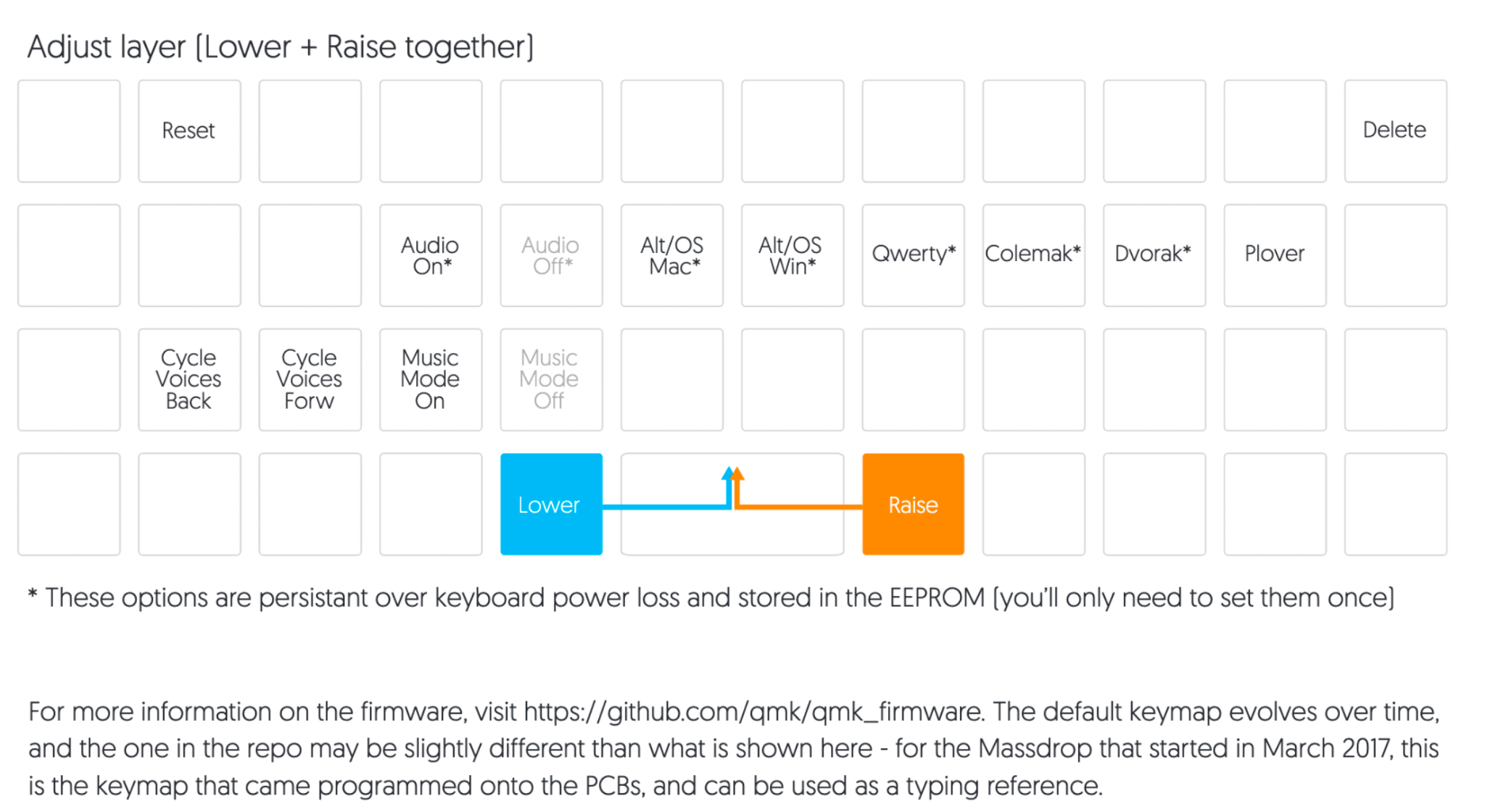
Planck: The PDF of the default keymap
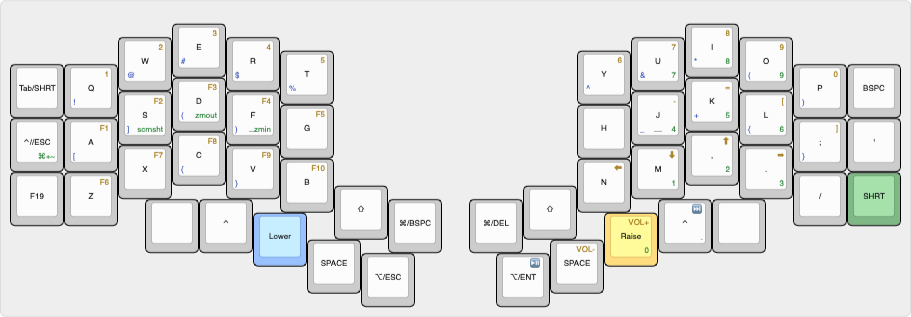
Moonlander, Planck, and new layout that minimizes pinkies and stretching
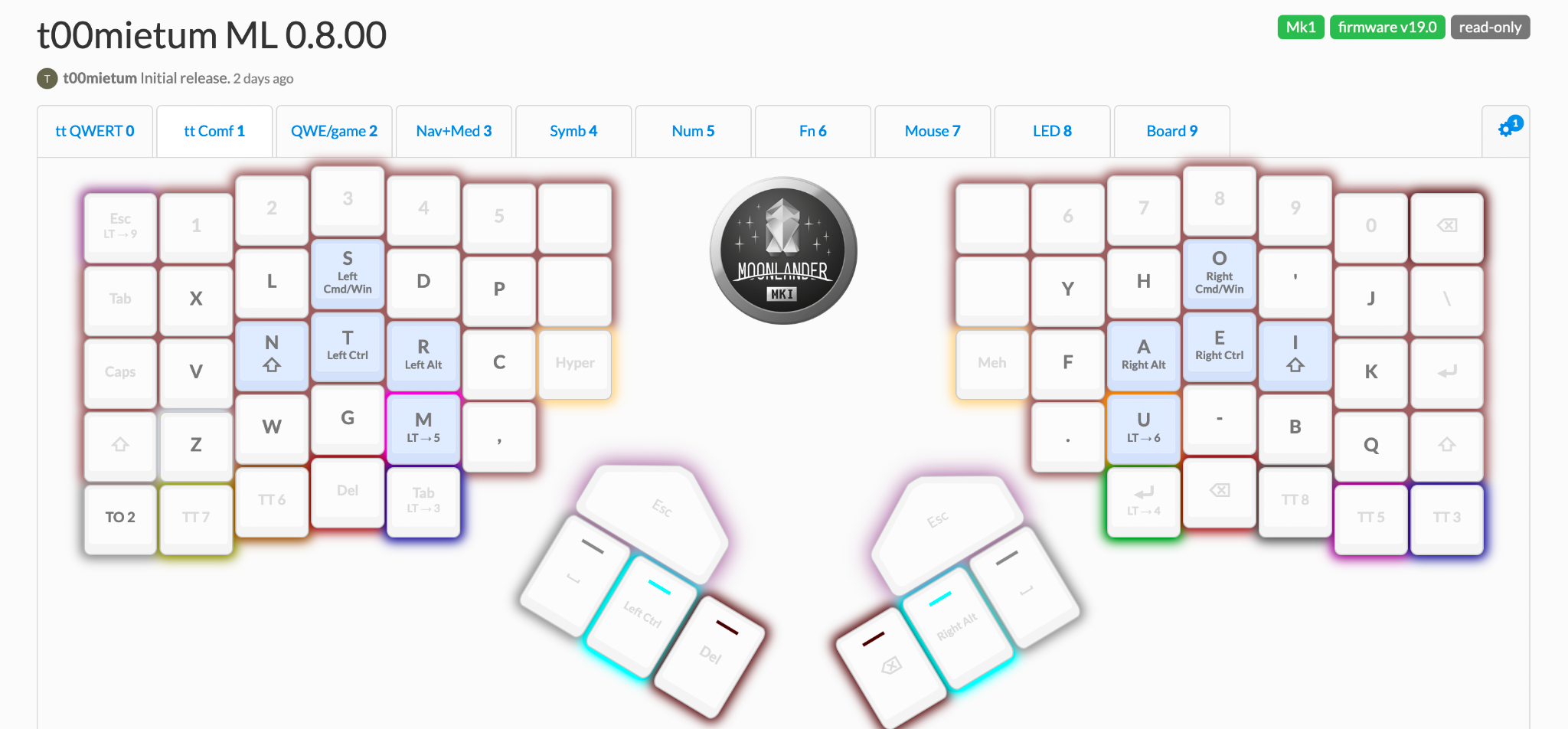
I went a long way down those rabbit holes! I'd say definitely don't bother with 4grams. You can and probably would go mad. The only way I'm typing on an infinitely better layout now, is because:
- I remembered that my peak Dvorak speed, after a few years of all-day/every-day use and frequent speed test practice, was only marginally better than qwerty; and typical use was slower. Which suggests to me at least, that the strength of brain wiring is more important to speed and accuracy, than any specific layout, even as grossly suboptimal as qwerty is. (And like most, I had developed organic, mostly subconscious workarounds for qwerty's worst flaws.)
- There are SO many tradeoffs and compromises that have to be weighted and considered, it's literally not possible to accomplish all objectives. Optimize top 3grams? Sacrifice top 2grams. Optimize top 2grams? Sacrifice pinkie curling. It's endless (even with tools like this), and maddening. I eventually realized that, while I could still weight other concerns, I had to really focus on two main things: minimal pinkie use, and minimal index finger stretching. That greatly simplified things, and was the only thing that allowed me to make progress. Basically the only other priorities that had significant influence after that, was alternating fingers!
- I gave all the major modern layouts really good runs. Colmak[/dh], Workman, Carpalx QGMLWY, and several ortholinear/thumb-cluster derivatives. I desperately wanted one - any one - to work. They all made too many tradeoffs. (And had too many "quality-of-life" issues such as dumb navigation or Fn-key layering.) For example, many layouts make the inexplicable choice to maintain ZXCV, and/or symbols locations. But that immediately and severely constrains your options! Such wholly unnecessary artificial hamstringing must be the first thing to go if you want to have any hope of optimizing much else.
- Even the few layouts that avoid those mistakes, still seem to optimize for a five-finger home row, that involves too much pinkie, and index stretching. That's bad for me personally, and I'm now realizing possibly in general too.
My work has all been local, but I've recently begun open-sourcing it. More to come.
https://github.com/t00mietum/keyboard_
https://docs.google.com/spreadsheets/d/1i8QfbnC41kJ8Fhe2n4VAXiONWaPQjeGDeqqHqsaXD2Y/edit?usp=sharing
https://configure.ergodox-ez.com/moonlander/layouts/7Qqby/
https://configure.ergodox-ez.com/planck-ez/layouts/En5W5/
By another user:
Incase you're interested my 61 are:
- 26 Letters
- 10 numbers
- 11 symbols: ,.;'`/[]-= (and their shifted options)
- 4 modifiers: shift, ctl, alt, win
- 3 whitespace: space, tab, enter
- backspace and delete,
- arrow keys
- esc
I gave serious consideration to autoshift, but opted not to because:
- I knew I'd be layering modifier keys on top of letters,
- I reasoned that I'd be already struggling mightily with new (to me) ortho config, all modifier keys moved around; numbers, Fn, nav, and symbols moved, and a new alpha layout. (And I am struggling! But by now it's a sound layout. Just need muscle memory. I struggled through dvorak successfully, I'll get this too.) Adding autoshift to the mix might break my brain. Esp as I type painfully slow now, but eventually 80 to 100 wpm.
I've been thinking about OSM. I think it would work well for things like Fn layer, which as afaicr, are only ever single presses. But not, I think, for things like ctrl or shift, where you might (and I often do) hold it down while doing a number of things in succession, e.g. "advanced" text navigation, selection, etc. Similarly with Alt, for things like text multiselect, Linux window management, file manager navigation, etc.
I love the Microdox, thanks for that link! I might have to order one. Like yours, my layouts are specifically designed with that form factor in mind as a lowest common denominator. I ordered this months ago, but have given up on it shipping.
So, my layouts are fully functional if all the extra keys go away.
Alternative Numpad Layout
https://kbd.news/Numbers-in-Pnohty-1230.html
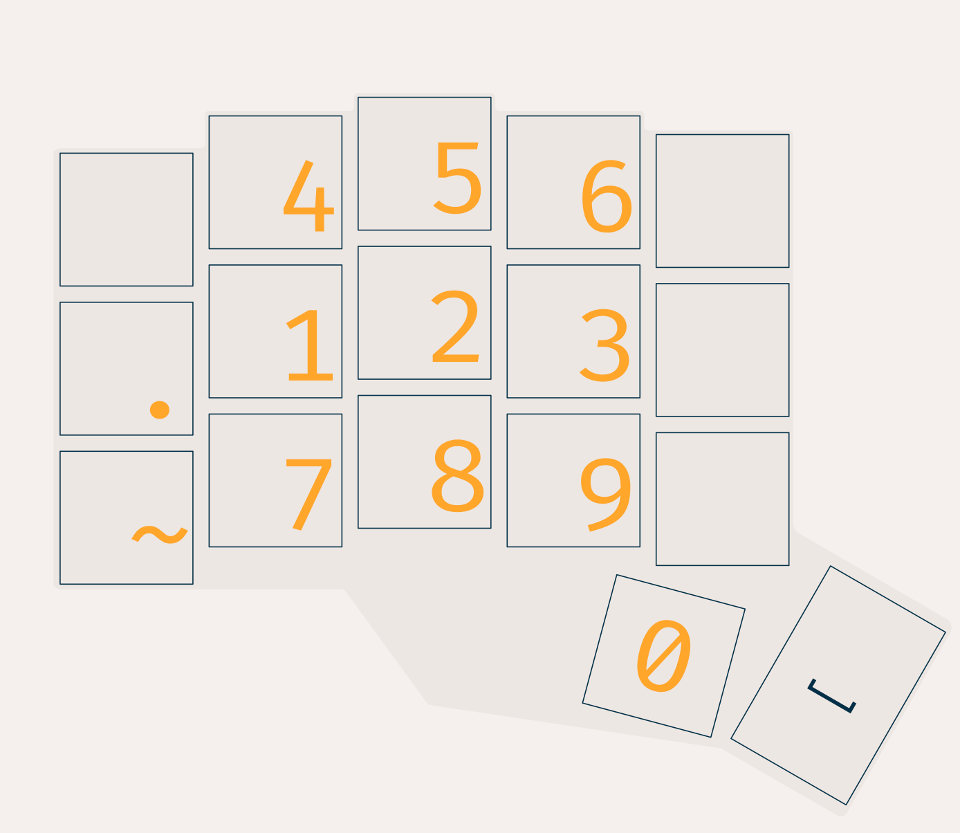
The gist of the trick is that the frequency of numbers is different but sort of descending: 0123 are the most frequently used ones and 789 are much rarer.
So with numbers on a logical layer, instead of putting 456 on the home row (as it's done on the classic numpad) you can put 123 (Pnohty) or 0123 (my approach) in the best positions:
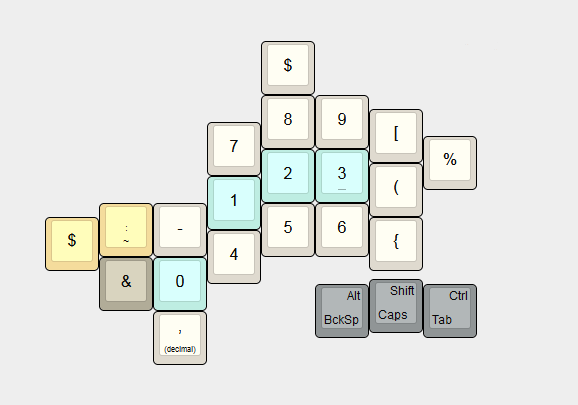
http://www.keyboard-layout-editor.com/#/gists/9b6379d4940a356bf904ea5452bf3956
Layout with combos
https://github.com/phaberest/qmk_firmware
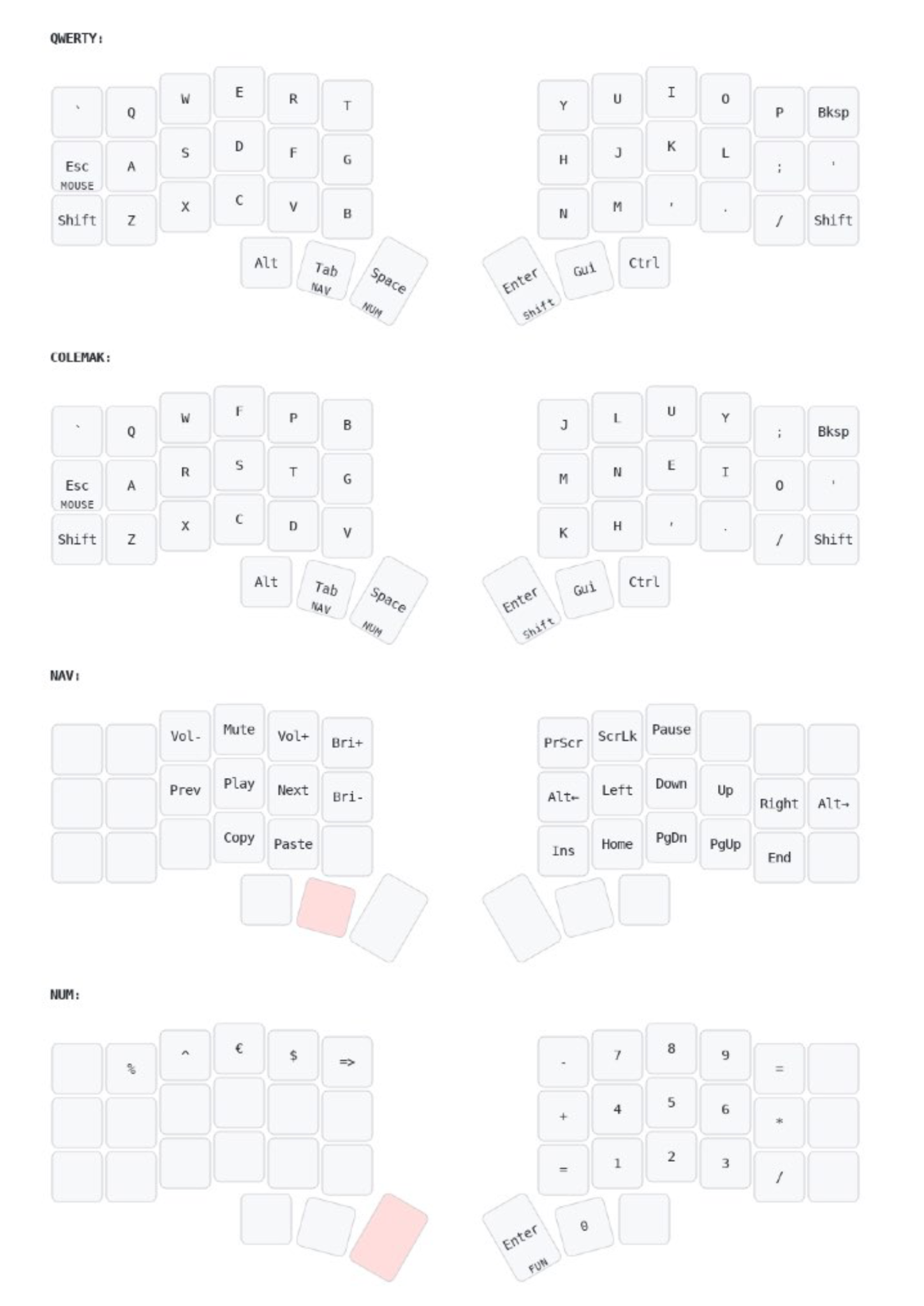
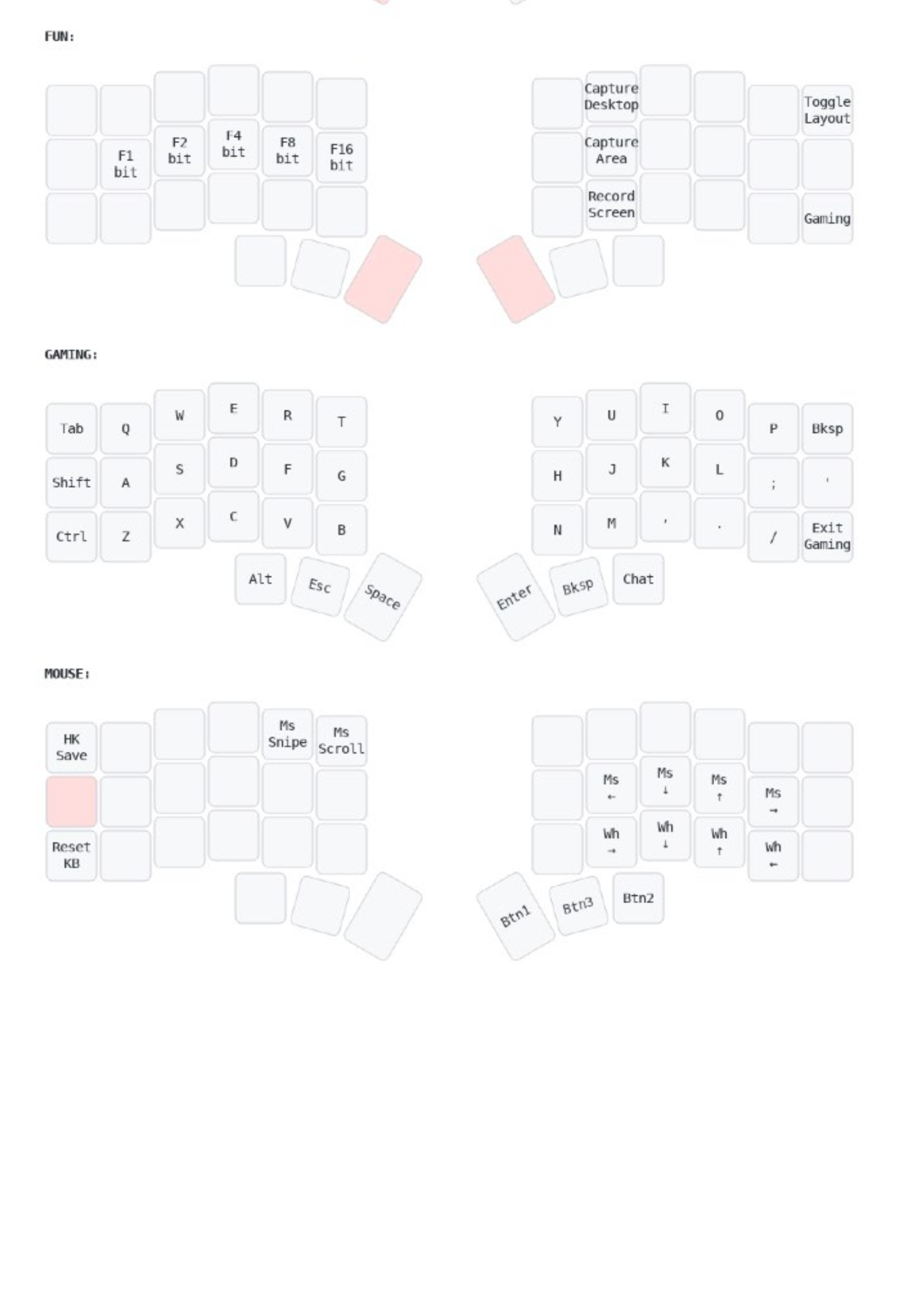
- Layer Overview*
Layer 0: QWERTY Base
┌─────┬─────┬─────┬─────┬─────┬─────┐     ┌─────┬─────┬─────┬─────┬─────┬─────┐
│ GRV │  Q  │  W  │  E  │  R  │  T  │     │  Y  │  U  │  I  │  O  │  P  │BSPC │
├─────┼─────┼─────┼─────┼─────┼─────┤     ├─────┼─────┼─────┼─────┼─────┼─────┤
│ESC/6│  A  │  S  │  D  │  F  │  G  │     │  H  │  J  │  K  │  L  │ ; : │ ' " │
├─────┼─────┼─────┼─────┼─────┼─────┤     ├─────┼─────┼─────┼─────┼─────┼─────┤
│LSFT │  Z  │  X  │  C  │  V  │  B  │     │  N  │  M  │ , < │ . > │ / ? │RSFT │
└─────┴─────┴─────┼─────┼─────┼─────┤     ├─────┼─────┼─────┼─────┴─────┴─────┘
                  │LALT │TAB/2│SPC/3│     │ENT/⇧│LGUI │RCTL │
                  └─────┴─────┴─────┘     └─────┴─────┴─────┘
Layer 1: Colemak-DH Base
┌─────┬─────┬─────┬─────┬─────┬─────┐ ┌─────┬─────┬─────┬─────┬─────┬─────┐ │ GRV │ Q │ W │ F │ P │ B │ │ J │ L │ U │ Y │ ; : │BSPC │ ├─────┼─────┼─────┼─────┼─────┼─────┤ ├─────┼─────┼─────┼─────┼─────┼─────┤ │ESC/6│ A │ R │ S │ T │ G │ │ M │ N │ E │ I │ O │ ' " │ ├─────┼─────┼─────┼─────┼─────┼─────┤ ├─────┼─────┼─────┼─────┼─────┼─────┤ │LSFT │ Z │ X │ C │ D │ V │ │ K │ H │ , < │ . > │ / ? │RSFT │ └─────┴─────┴─────┼─────┼─────┼─────┤ ├─────┼─────┼─────┼─────┴─────┴─────┘ │LALT │TAB/2│SPC/3│ │ENT/⇧│LGUI │RCTL │ └─────┴─────┴─────┘ └─────┴─────┴─────┘- Layer 2: Navigation/Media
- Arrow keys, page navigation, word navigation
- Media controls (play/pause, volume, brightness)
- Copy/paste shortcuts
- Layer 3: Numbers/Symbols
- Number pad on right side
- Symbol keys on left side
- Mathematical operators
- Layer 4: Function Keys (Bitwise Input)
- Innovative bitwise input system
- Left home row keys act as binary bits: A(1) + S(2) + D(4) + F(8) + G(16)
- Examples: A+D = 1+4 = 5 = F5, S+F = 2+8 = 10 = F10
- Access to all F1-F24 function keys
- Layer 5: Gaming (Work in Progress)
- Standard WASD layout
- Optimized for gaming with direct access to common keys
- Chat mode for quick typing during games
- Layer 6: Mouse/Utilities
- Mouse movement and scroll wheel
- Mouse buttons
- Keyboard reset and utilities
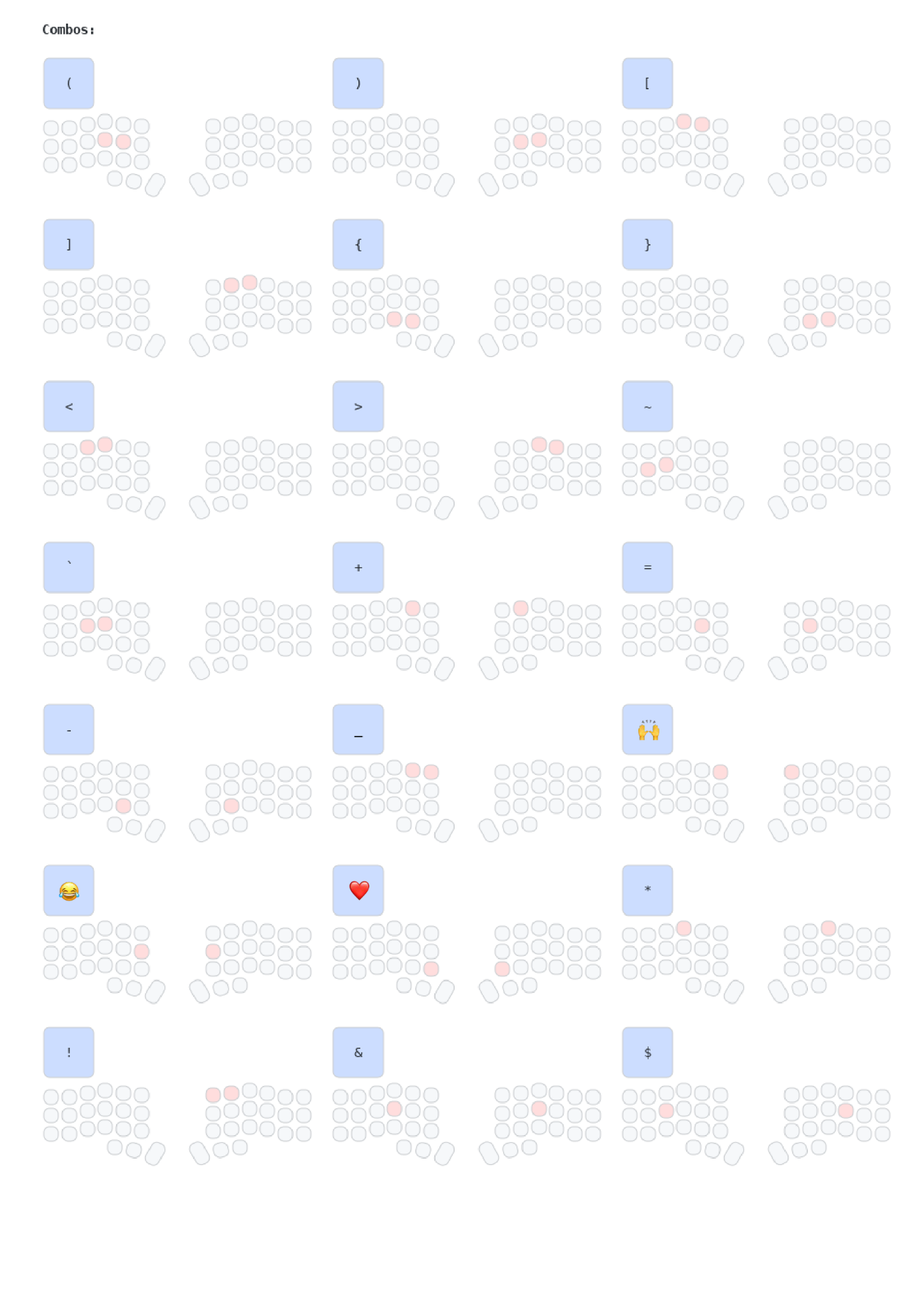
- Combo System*
The keyboard features comprehensive combos that adapt to your current
layout (QWERTY/Colemak-DH). Each combo is mapped to equivalent key
positions on both layouts, so you learn one set of finger movements that
work regardless of your active layout:
Brackets & Parentheses
Combo QWERTY Keys Colemak Keys Output () D+F S+T ( ) [] E+R F+P [ ] {} C+V C+D { } <> W+E, I+O W+F, U+Y < > Mathematical Operators
Combo QWERTY Keys Colemak Keys Output Plus R+U P+L + Minus V+M D+H - Equal F+J T+N = Asterisk E+I F+U * Underscore R+T P+B _ Special Characters
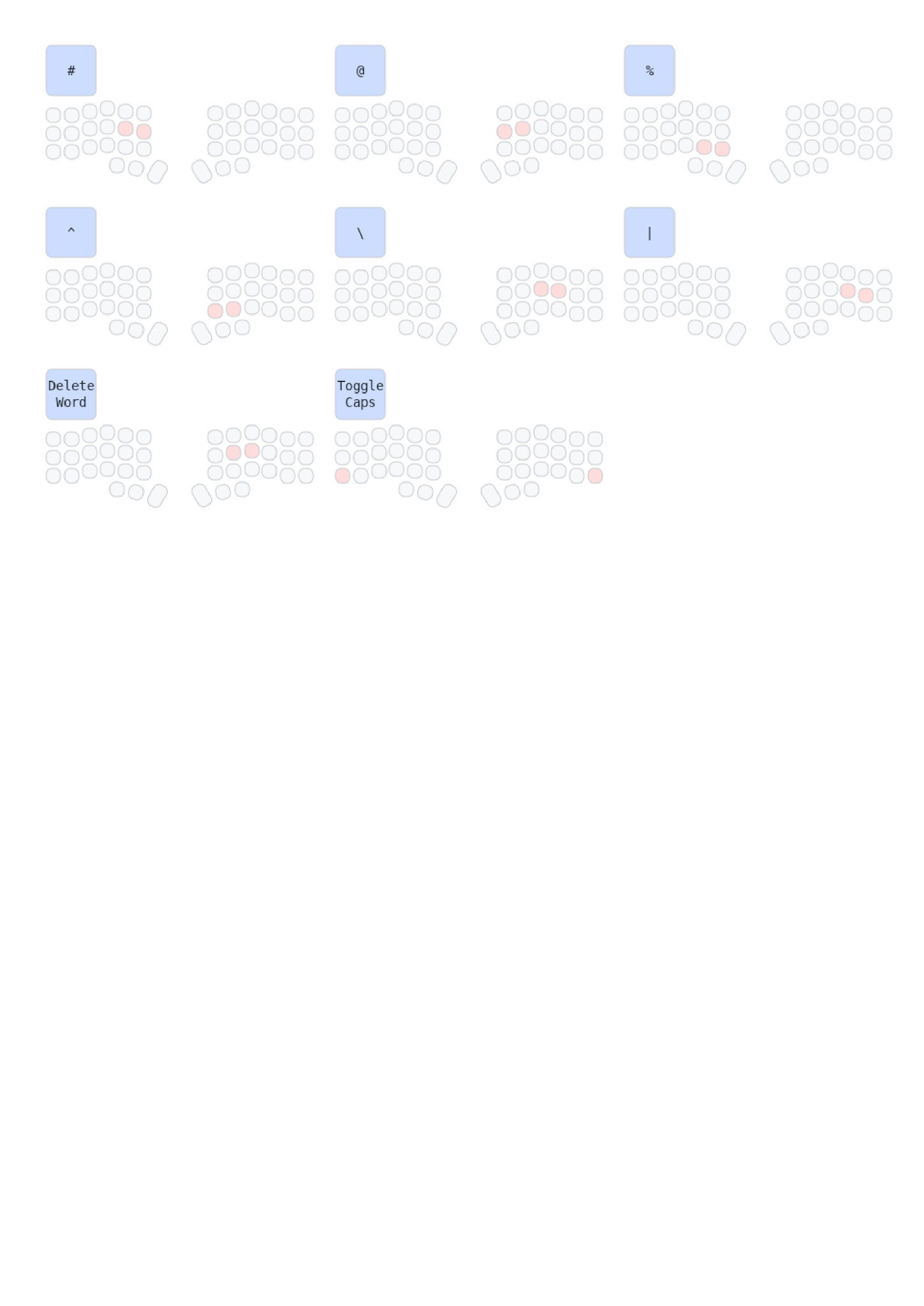
Combo QWERTY Keys Colemak Keys Output Tilde A+S A+R ~ Grave S+D R+S ` Exclamation Y+U J+L ! At symbol H+J M+N @ Hash F+G T+G # Dollar S+L R+I $ Percent V+B D+V % Caret N+M K+H ^ Ampersand D+K S+E & Utility Combos
Combo Keys Action Word Delete 4+5 Alt+Backspace
- Special Features
- Layout Switching
- Toggle Layout: Access via Function layer to switch between QWERTY and Colemak-DH
- Persistent Storage: Your layout preference is saved to EEPROM
- Smart Combos: Combos automatically map to equivalent key positions on your active layout
Bitwise Function Keys The most unique feature - use binary combinations on the left home row:
- A = 1, S = 2, D = 4, F = 8, G = 16
- Hold combinations to generate F-keys: A+D = F5, S+F = F10, etc.
- Access all F1-F24 keys with simple finger combinations
Idea brutally copied from this excellent article - full credit to the original author!
- Auto Mouse Layer
- Automatically activates when trackpoint movement is detected
- 1-second timeout returns to previous layer
- Full mouse control with buttons and scroll wheel
- Caps Lock Toggle
- Press both shift keys simultaneously to toggle Caps Lock
- Visual feedback on OLED display
- Layout Switching
ZSA configurator layouts folded
- Modifiers on the home row, symbols on the top row (instead of numbers): https://configure.zsa.io/ergodox-ez/layouts/W4aV3/latest/0
- Default Ergodox Layout
- 34 key Ergodox EZ Configurator
- similar to mine, with mods on the home row
- Oryx: The ZSA Keyboard Configurator - Corne
- Planck: workman dead (by Ben Vallack)
- Ergodox EZ Configurator - Eio 2.0 (coding macros)
- coding layer with things like "->" and "()->"
- also there are macro recording keys on this layer in thumb cluster
- Singularity - Ergodox EZ Configurator
- heavy double-function keys
- all modifiers (alt, ctrl, shift) are on the home row
- dual ctrl/esc is where the caps lock is
- A - shift, D - alt (and similarly on the right side)
- "space cadet" - square brackets [ ] (instead of parenthesis) on shift keys
- tmux layer with move (vim-like) keys, vertical and horizontal split and detach
- Switch to layer: dual-function B key (memo: tmux'es Ctrl-B)
- FKey pad - numpad-like F keys + extra F16 - F21 keys at the top
- F is a toggle for this layer (easy to remember)
- it is also easy to perform alt-FX combinations - alt is on D, so we hold D+F and press the right cluster key to get the F we need
- Glowing Siegler Symmetric
- mouse and mouse wheel buttons hjkl-style
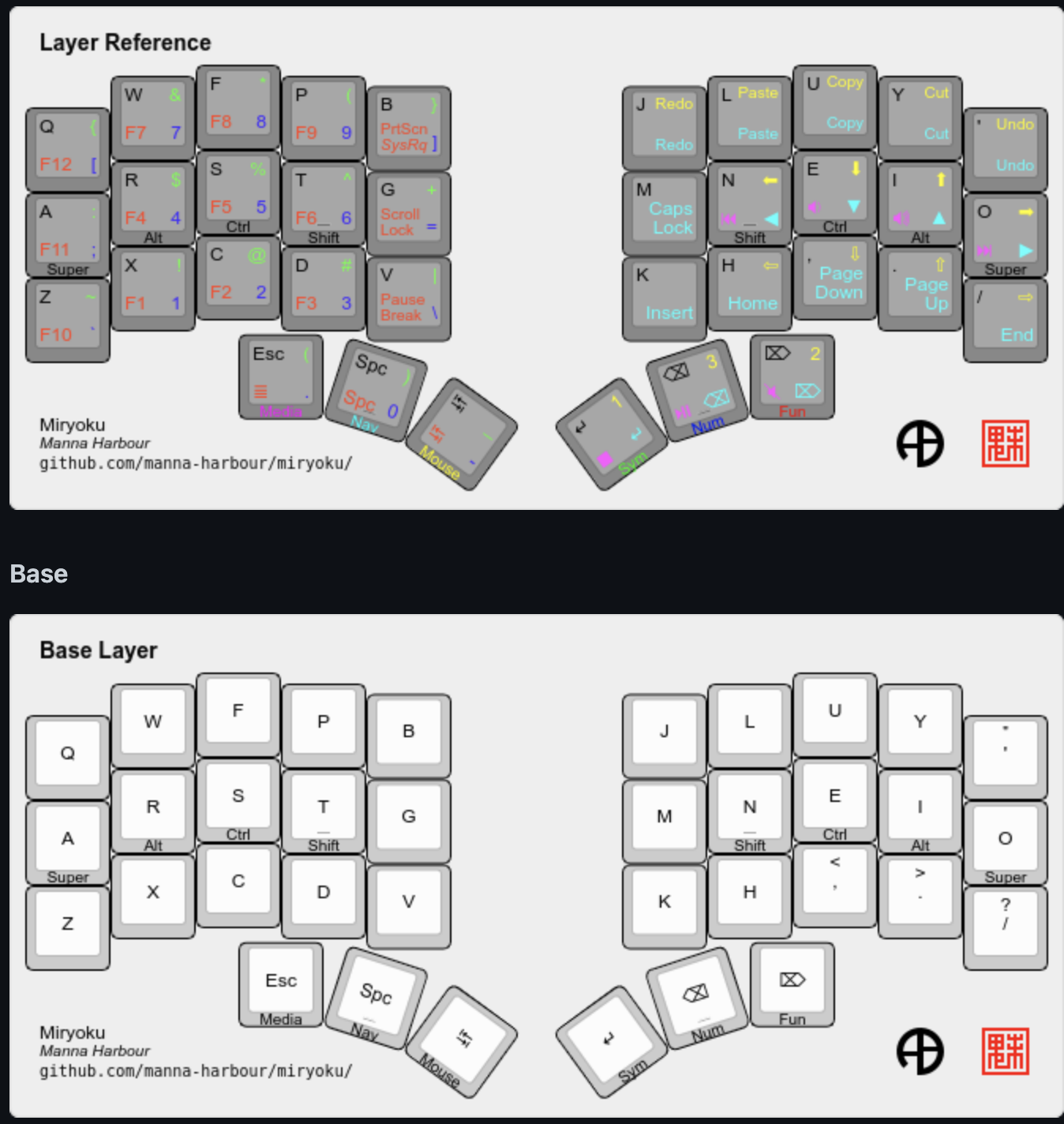
- miryoku - Ergodox EZ Configurator (moonlander)
- Miryoku layout for Moonlander, Planck EZ, and Ergodox EZ : ErgoDoxEZ
- settings for home mods in miryoku layout
- Miryoku layout for Moonlander, Planck EZ, and Ergodox EZ : ErgoDoxEZ
- (Halmak, Vim layer) Oryx: The ZSA Keyboard Configurator
- Vim layer - Vim-like commands over regular keys
- w = fwd word (Ctrl + ->)
- b = back word (Ctrl + <-)
- u = undo (Ctrl-Z)
- 4 ($) = end line (End)
-layer - same as base, but with "-" in place of space - to type long-hyphen-separated-words_layer - same as base, but with "_" in place of space - to type long_underscore_sep_words
- Vim layer - Vim-like commands over regular keys
- Ergodox EZ Configurator - Flying to the Moon (Florian Didron, Ergodox QMK Developer)
- Minimalistic layout with AutoShift
- AutoShift timeout = 110
- Tapping term = 121
- This sets the delay interval (in milliseconds) that the firmware uses to determine if a press is considered a tap or a hold. This is used for dual-action keys like Layer Tap (LT), and Mod Tap (MT). If the "hold time" to trigger the "hold" action feels too long, decrease this value. If it is too short for you (you trigger the hold action when you meant to tap), increase this value. This also determines the length of time for certain other features. For Instance, the TT and One Shot keys use this as the timeout for a "toggle", (aka, you have to hit the key within this window to be considered for the "tap toggle" functionality).
- Retro tap = On
- algernon/ergodox-layout: algernon's ErgoDox EZ layout
- advanced layout, using tap dancing (for example, all brackets are on the same key, there is leader key with some mappings) and other features that are not available in configurator (and I am not at that point yet to switch to code)
- there is also a steno layer to use with plover
- Lesson 1: Fingers And Keys - Learn Plover!
- Asylum: Diaries of a Madman
- ErgoDox: Day 34 - Asylum
- The Shift, Alt, and Control modifiers are one-shot. When tapped, they are considered active for the next key press only. When double tapped, they toggle on, until a third, single tap sometime later. When held, they act as expected. My usual pattern is that I use these for the next keypress only, so this behaviour is perfect. If I need them held, I'll just double-tap.
- Ergodox EZ Configurator (Mac, Vim, IDEA IDE)
- Layer 0 - Vim Leader on the red button (macro = , ,)
- Layer 0 - Copy and paste mac buttons on the inner side column, at the bottom
- Layer 1 - brackets are symmetrical on the left and right hands; looks like this is a special layer for OSL 1 switch (there is also Layer 2 where there are more punctuation chars put similar to the default layout)
- Layer 4 - Nav, enabled by left big red button - arrows, left ctrl, cmd on the left and pg up, home, pg down and shift tab and tab on the right
- Having shift tab and tab near looks convenient
- Separate layer for lights (I have it on the media layer)
- Separate layer for IDE/vim
- mostly macros and key combos
- Ergodox EZ Configurator - BEAKL 15 (+query, + dvorak), pc and mac
- osx vs pc - there is a separate osx layer with some overrides (like CMD instead of Ctrl) and most of keys transparent
- separate layers for arrows and mouse
- main layout - BEAKL with fallback layers - qwerty and dvorak
- wide planck form (letters outside, mods inside)
- ZSA Moonlander First Impressions - Christine Dodrill
- Ergodox EZ Configurator
- Four different layouts - colemak, qwerty, dvorak, steno
- Layout for window manager (dwm)
- symnum with symbols, numpad, F keys
- Ergodox EZ Configurator
- Moonlander, Planck, and new layout that minimizes pinkies and stretching : ergodox
- naps62/ergodox-layout: A heavily customized layout for my Ergodox EZ keyboard
- very "classic" layout, close to the standard keyboard
- brackets at the right bottom
- coder layer with num pad (I tried similar setup, then moved the numpad to a separate layer to have arrows on the right side)
- The Ergodox Layouts Repository - Massdrop
- fixing the ergodox thumb section

Layouts: Links folded
- qmk_firmware/users/callum at master · callum-oakley/qmk_firmware
- Jonas Hietala: The T-34 keyboard layout
- Share your keyboard layouts, here is my iris layout: ErgoMechKeyboards
- Yet, another keyboard layout (RSHT / IENA) : KeyboardLayouts
- [with custom RGB control - qmk + host app!] my ergonomic keyboard adventure - ergodox ez · Friz64
- Symbols via combos on the base layer: The Kombol Layout : ErgoMechKeyboards
https://www.reddit.com/r/ErgoMechKeyboards/comments/mi7tyi/the_kombol_layout/
- GitHub - skychil/kombol: A combo-based layout for Ergonomic Keyboards, implemented in QMK
- The Kombol Layout : KeyboardLayouts
- https://www.reddit.com/r/KeyboardLayouts/comments/mib12s/the_kombol_layout/
- Vertical combos and inner combos (! ?) use 1 finger, the rest use 2 fingers.
- Arno's Engram keyboard layout | engram
- alternative letter / symbol layout
- 30-40% split keyboard users: how do your punctuation/symbol/number layer(s) look like? : ErgoMechKeyboards
- Made a video explaining how I made a 34 key keymap. Might be useful for those wondering how so few keys are usable!: ErgoMechKeyboards
- Share your keyboard layouts, here is my iris layout : ErgoMechKeyboards
- ARTSEY.io - 8 key layout
- LT-37 Keyboard mod for regular keyboards : Keyboard
- ZenTron
- Introducing the RSTHD layout – meus recogitare et excogitare
- Ergonomic keyboard layouts - Deskthority wiki
- What are some of the most popular ergonomic keyboard layouts with layers? : ErgoMechKeyboards
- modtap comments on Making a crkbd-mini, any pointers on QMK for non default column layouts
- qmk_firmware/keyboards/minidox/keymaps/dustypomerleau at master · qmk/qmk_firmware
- qmk_firmware/keyboards/minidox/keymaps/bepo at master · qmk/qmk_firmware
- qmk_firmware/keyboards/minidox/keymaps/norman at master · qmk/qmk_firmware
- qmk_firmware/keymap.c at ginny-improv · germ/qmk_firmware
- qmk_firmware/keymap.c at 054021e8757a72de4d3fae1f58944e9c922d22d1 · qmk/qmk_firmware
- lifow comments on Just finished my Levinson
- modtap comments on Making a crkbd-mini, any pointers on QMK for non default column layouts
- t00mietum/keyboard: Ground-up redesign of ergonomic keyboard layout for QMK programmable keyboards.
- QMK Layout Mitosis:Datagrok - Imgur
- Case Study: One Approach to Optimizing Ergonomic Keyboard Layouts - All Things Ergonomic
- plate-based Let's Split
- In search of the best custom keyboard layout – Josef Adamčík
- Community Post: 40% Keyboard Layouts
- layers on 36 keys – mullin'
- Thoughts on the Seelpy Layout - deskthority
- waffle_microdox/firmware/waffle at master · wafflekeebs/waffle_microdox
- Down the ergonomic keyboard rabbit hole
- custom letters layout (no inner layer)
- Ergodox EZ Configurator
- OLKB Planck rev6 | keebs.fehmer.info
- A useful Caps Lock key - BrettTerpstra.com
- Show off your layouts! : ergodox
- Some ideas about sub-30% layouts involving the Enigma, pain27, Alpha and 30wer - Learning and discussion / Key layouts - KeebTalk
- 48 keys are plenty | Callum Oakley
- Transitioning to a new keyboard layout | Wildly Inaccurate
- MoErgo Glove80 Layout Editor
- Keyboardio: keyboards for serious typists
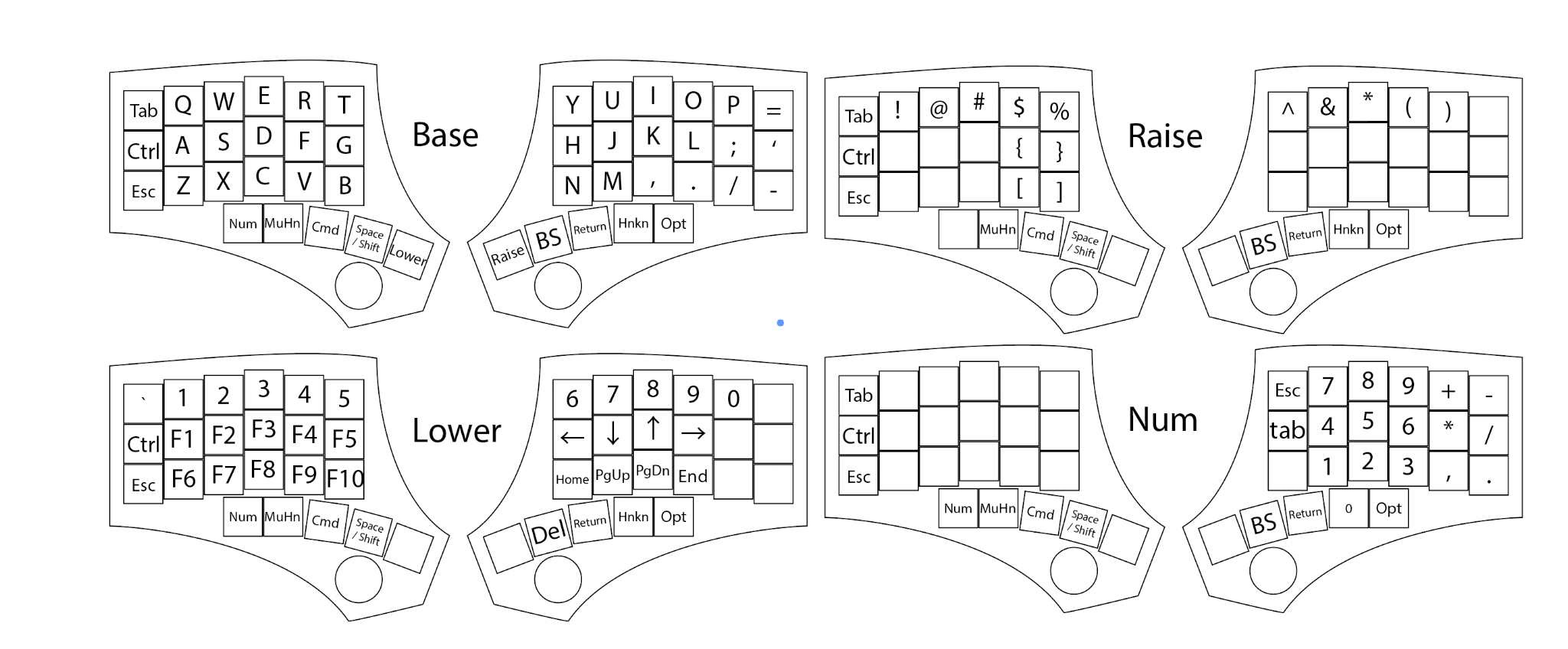
- see the Atreus layout
- top part - letters, bottom row - modifiers